A work-in-progress limit is one of the cheapest process changes a team can make: pick a number, write it on the board, agree not to start new work past it. Azure Boards will happily let you label a column with a limit. What it will not do on its own is tell you, sprint after sprint, whether the team is actually inside that number or has quietly been over it for three weeks while everyone was looking at the board columns instead of counting.
What "in progress" actually means
A WIP limit is only honest if "in progress" means something specific. An item counts as in progress if it has a real work-start signal, a mapped in-progress transition, or an Activated Date, at or before the moment being measured, and is not already completed by that moment. Simply being created and parked in the sprint does not count as started; a backlog of untouched items sitting in a sprint should not silently inflate a WIP count that is supposed to measure active work.
WIP Monitor: one number, one badge
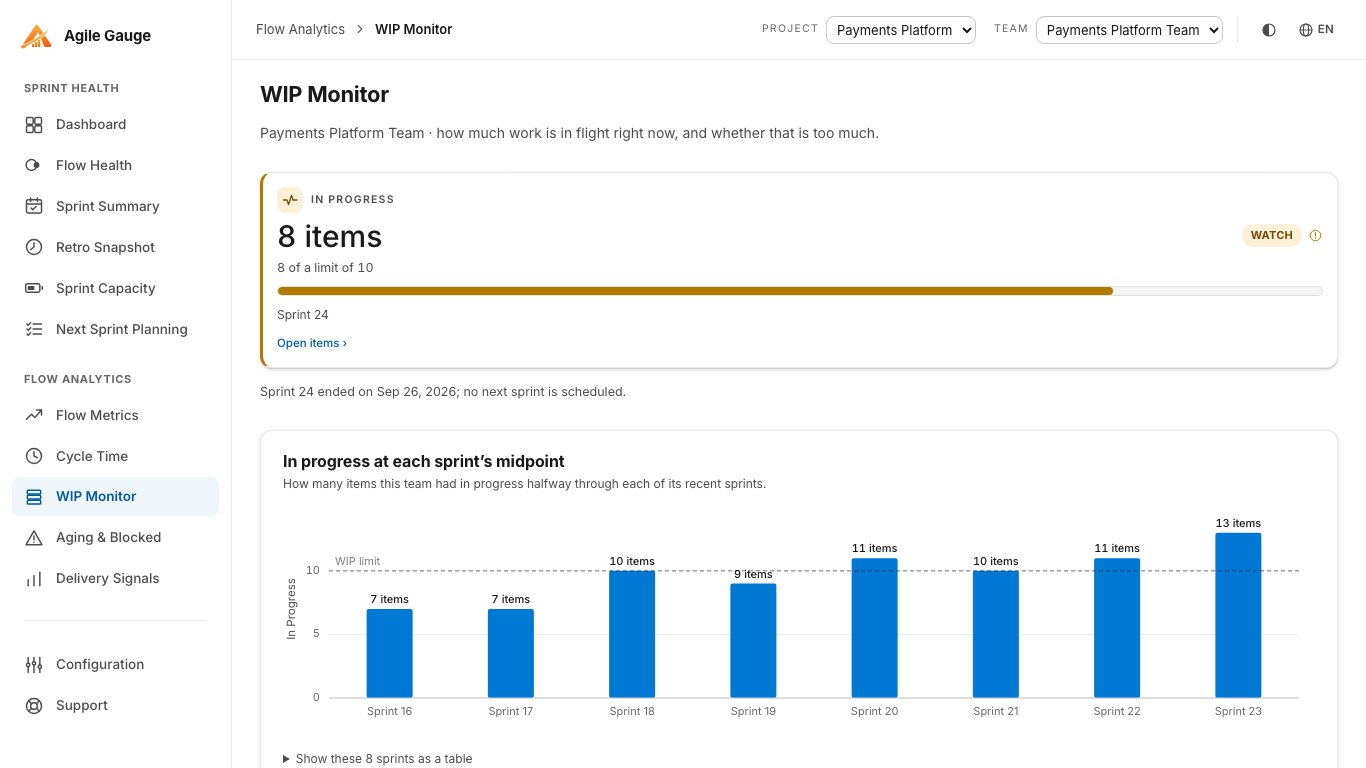
Agile Gauge's WIP Monitor view is scoped to whichever team is selected in the hub's top bar and shows a single "in progress now" figure for the running sprint, plus a badge, Over limit, Near limit, or No limit set, shown only when it needs attention. Nothing extra is shown when things are fine, which is deliberate: a screen someone checks daily should not need to be read carefully to know whether anything is wrong.
Where the limit actually lives
The limit itself is set in Configuration and saved for you, for that team: worth knowing before a disagreement breaks out, because it is a personal setting, not a shared team-wide one. Two people on the same team can each set a different number and each will see it as saved; Configuration says this plainly next to the input. If a teammate reports seeing a different limit than you do for the same team, that is not a bug: it means the team has not actually agreed on one number yet, only that each of you separately typed something in.
Status is graded in three bands: over the limit is "over limit"; at 80% of the limit or more, but not over it, is "near limit": exactly at the limit itself still counts as "near," not "over," since only strictly exceeding it should trigger the stronger warning. No limit set is its own distinct state, never quietly treated as "healthy" just because there is nothing to compare against.
What actually counts toward the number
Only the work item types your organization has configured to count toward metrics count toward WIP: by default, planned work such as stories and product backlog items, bugs, and research items. Tasks and other types are excluded by default unless a team deliberately adds them in Configuration, since counting every subtask alongside every story tends to make WIP look far worse than the actual bottleneck a team is trying to see.
Picking a number worth keeping
The hardest part of a WIP limit is rarely the tooling: it's agreeing on the number itself. A limit set too high never actually constrains anything, and the team never finds out what it was supposed to prevent. A limit set too low turns into a rule nobody follows within a week, which is worse than no limit at all, because it teaches the team that limits are decorative. A reasonable way in is to start close to whatever the team's actual in-progress count has been running at recently, WIP Monitor's own trend chart shows exactly that, and tighten it gradually once the team is comfortable staying under it, rather than picking a number out of a training deck and hoping it fits.
It is also worth agreeing, out loud, on what happens when the team hits the limit: does someone finish something before starting the next item, or does the limit get quietly ignored "just this once"? A limit that is enforced inconsistently teaches the team that it is optional, which defeats the point of having one at all: the number in Configuration only does its job if the team has actually agreed to respect it.
Reading the trend, not just today
A single day's count answers "are we over right now," but not "is this getting worse." Below the limit and badge, a bar chart shows in-progress-at-midpoint for the last up to eight sprints, with the WIP limit drawn as a reference line when one is set. A team that is occasionally a little over its limit looks very different from one that has been climbing steadily for two months: the same daily number could belong to either team, but the chart tells them apart.
Known limits
WIP Monitor is scoped to one team at a time: there is no all-teams table on this view, and no CSV export. History is capped at the last eight sprints, and the near-limit threshold is fixed at 80%, not configurable per team from this screen. None of the tiles here drill down into a work-item list either, other than the "no limit set" banner's button straight into Configuration: WIP Monitor is built to answer one question quickly, not to be a general item browser.
Getting there
Two things need setting up once: which work item types count toward metrics, and the limit itself, both in Configuration. After that, WIP Monitor reads your team's current sprint every time you open it: there is nothing to recalculate by hand, and nothing that goes stale between stand-ups.
Agile Gauge starts at $20 a month for up to 2 users. Start a 14-day free trial: full features, no card required.